
How to Maximize Your Vegas Poker Schedule
 Paweł Brzeski
Poker Player. Creator. Builder. WSOPC ring winner. Creator of Poker Academy. I write about strategic thinking under uncertainty and the emotional side of this beautiful game for those who want to feel, think better, play better, and build something meaningful.
Updated· first published ~7 min read

How to Maximize Your Vegas Poker Schedule
If you have ever tried to plan a Vegas summer from a stack of venue PDFs, you know the pain. WSOP drops a 100-page structure sheet. Wynn posts a flyer. The Orleans buries late reg in a spreadsheet. You end up with twelve browser tabs and still miss the one $600 Monster Stack you actually wanted to play.
The Vegas Poker Calendar pulls all of it into one screen. Every major room, every series, real structures, real late-reg windows. Here is how to use it to maximize your trip – play more of the events that fit you, and miss none of them.
The four views
Top of the page you get four tabs: Today, Calendar, Discover, and My Schedule. Each one answers a different question.
1. Today – what is running right now
Open Today when you are already in Vegas and want to know what to fire next. It is a one-screen briefing for a single date.
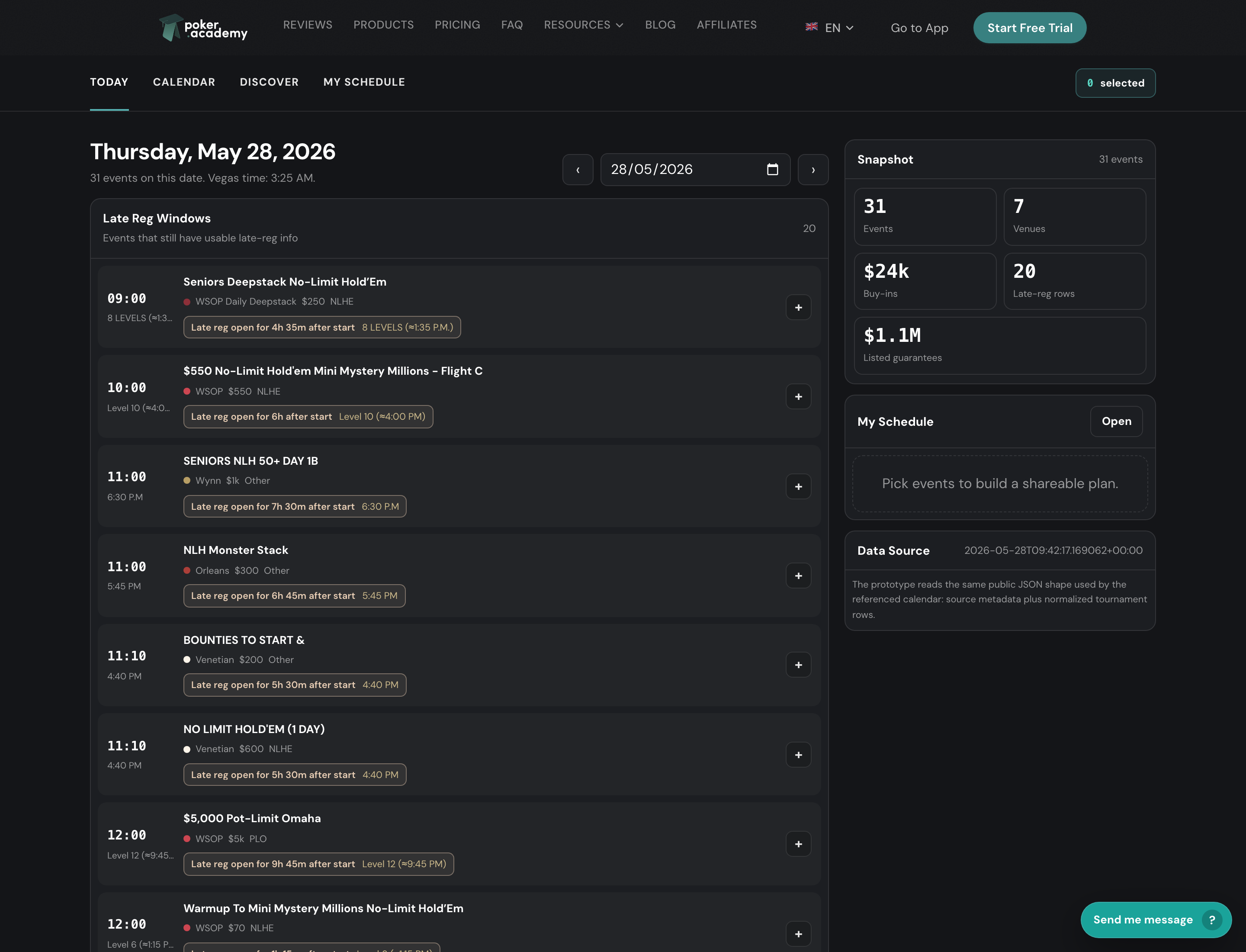
Down the left you get the Late Reg Windows list – every event you can still buy into, sorted by start time. Each row shows the time, the event name, the venue, the buy-in, and a late-reg badge (more on those below). The right rail is your Snapshot: how many events run today, across how many venues, total buy-ins on the board, and total guarantees. Use the date picker or the arrows up top to jump to any day.
2. Calendar – plan the whole trip
Switch to Calendar for the month grid. This is where you map out a two-week trip instead of a single session.
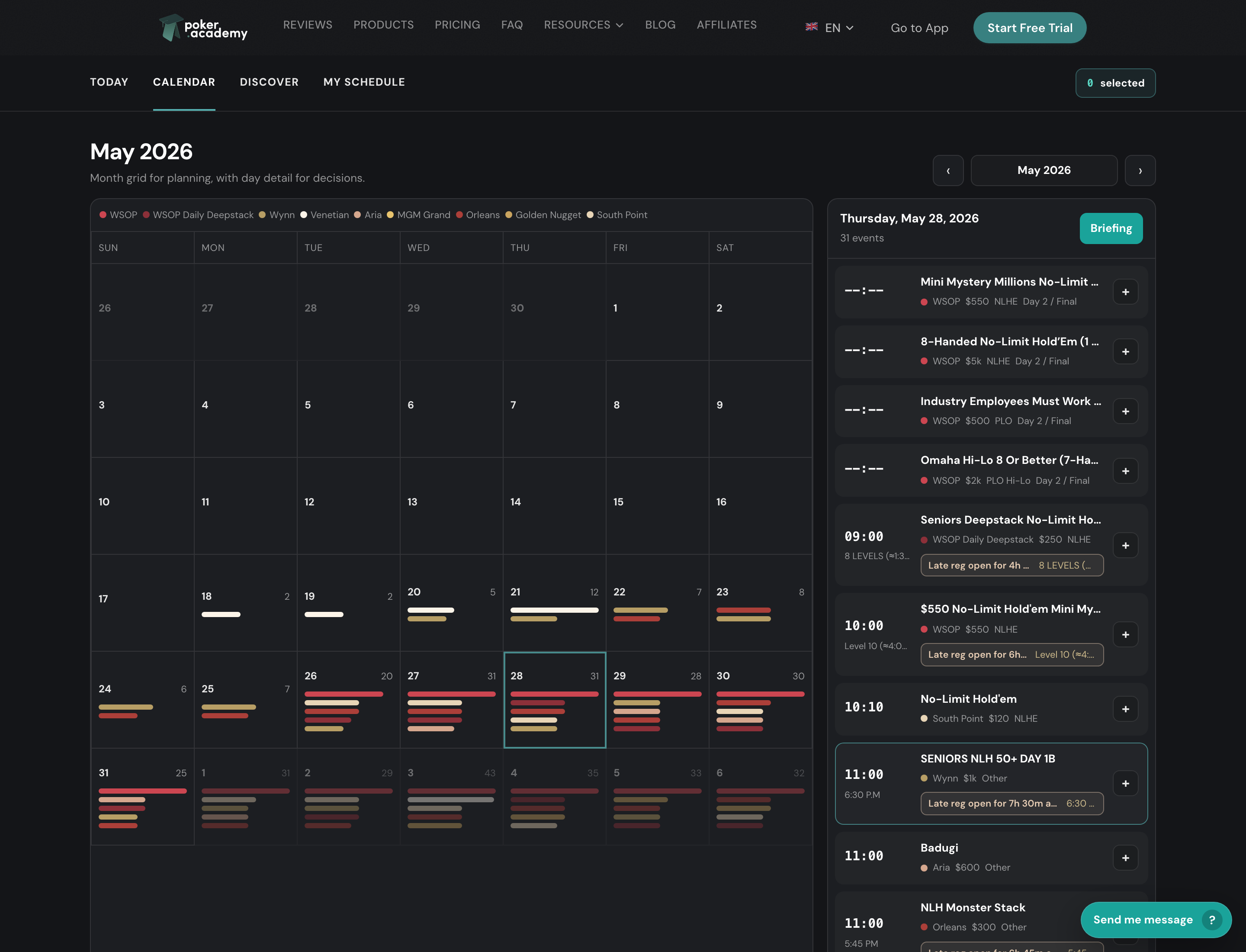
Every day is color-coded by venue – the legend up top tells you which color is WSOP, which is Wynn, Aria, Orleans, and so on. Busy days show more bars. Click any day and the side panel fills with that date’s full card. Hit Briefing to drop straight into the Today view for that date.
3. Discover – turn the data into a decision
This is the one most people sleep on. Discover takes the whole data set and filters it down to the events that fit how you actually want to play.
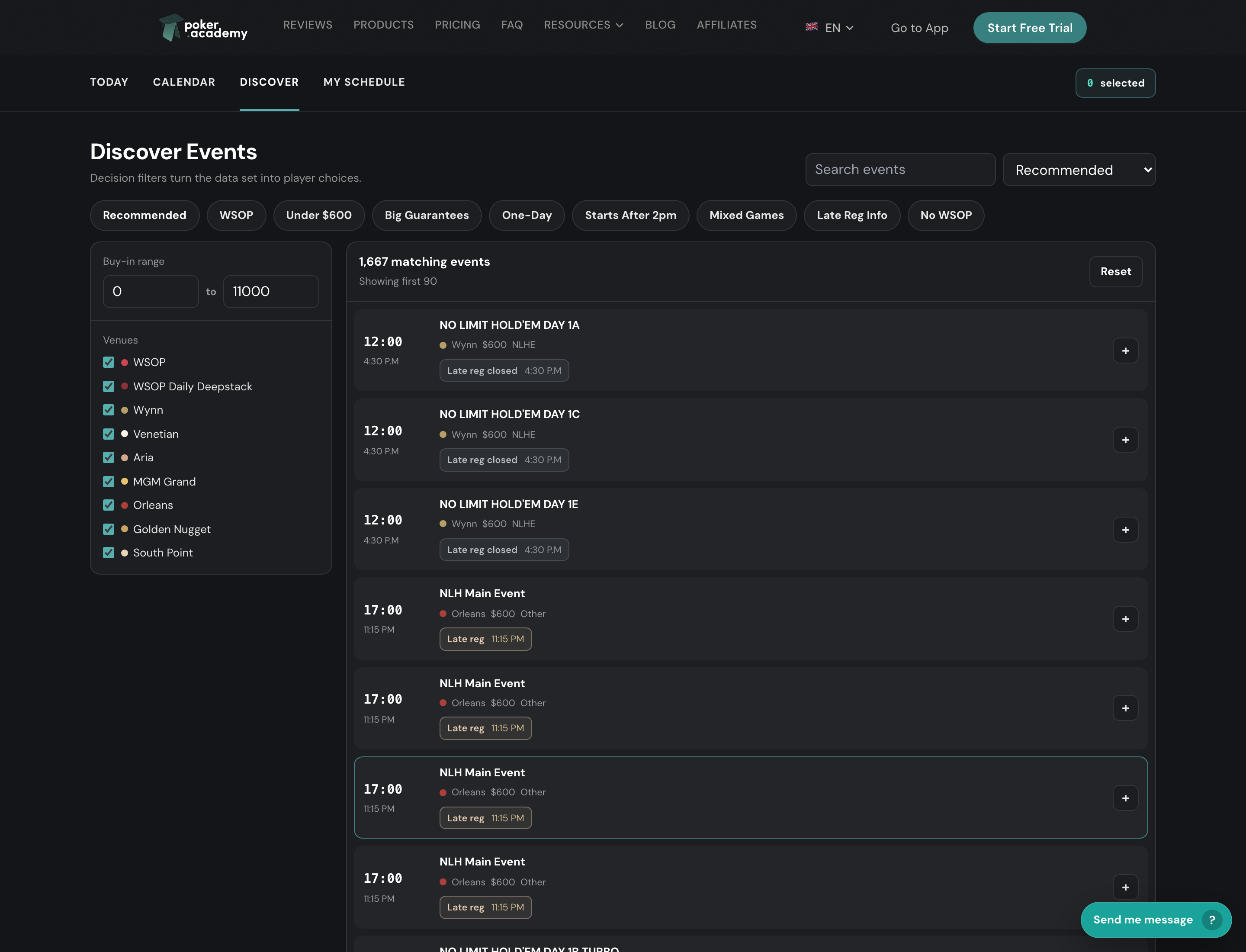
Tap a decision chip across the top:
- Recommended – value-weighted ranking (deep stacks, long levels, fat guarantees relative to buy-in)
- WSOP – bracelet and Daily Deepstack events only
- Under $600 – keep it to the cheaper fields
- Big Guarantees – the six-figure-plus prize pools
- One-Day – no Day 2 commitment
- Starts After 2pm – for the players who do not do mornings
- Mixed Games – PLO, Stud, HORSE, the non-hold’em stuff
- Late Reg Info – events with a usable late-reg window
- No WSOP – skip the Rio/Horseshoe crowds entirely
Then narrow it further with the buy-in range slider and the venue checkboxes on the left. Uncheck the rooms you are not visiting and the noise disappears.
4. My Schedule – your personal plan
Everywhere you see an event, there is a + button. Tap it (double-click works too) and the event drops into My Schedule.
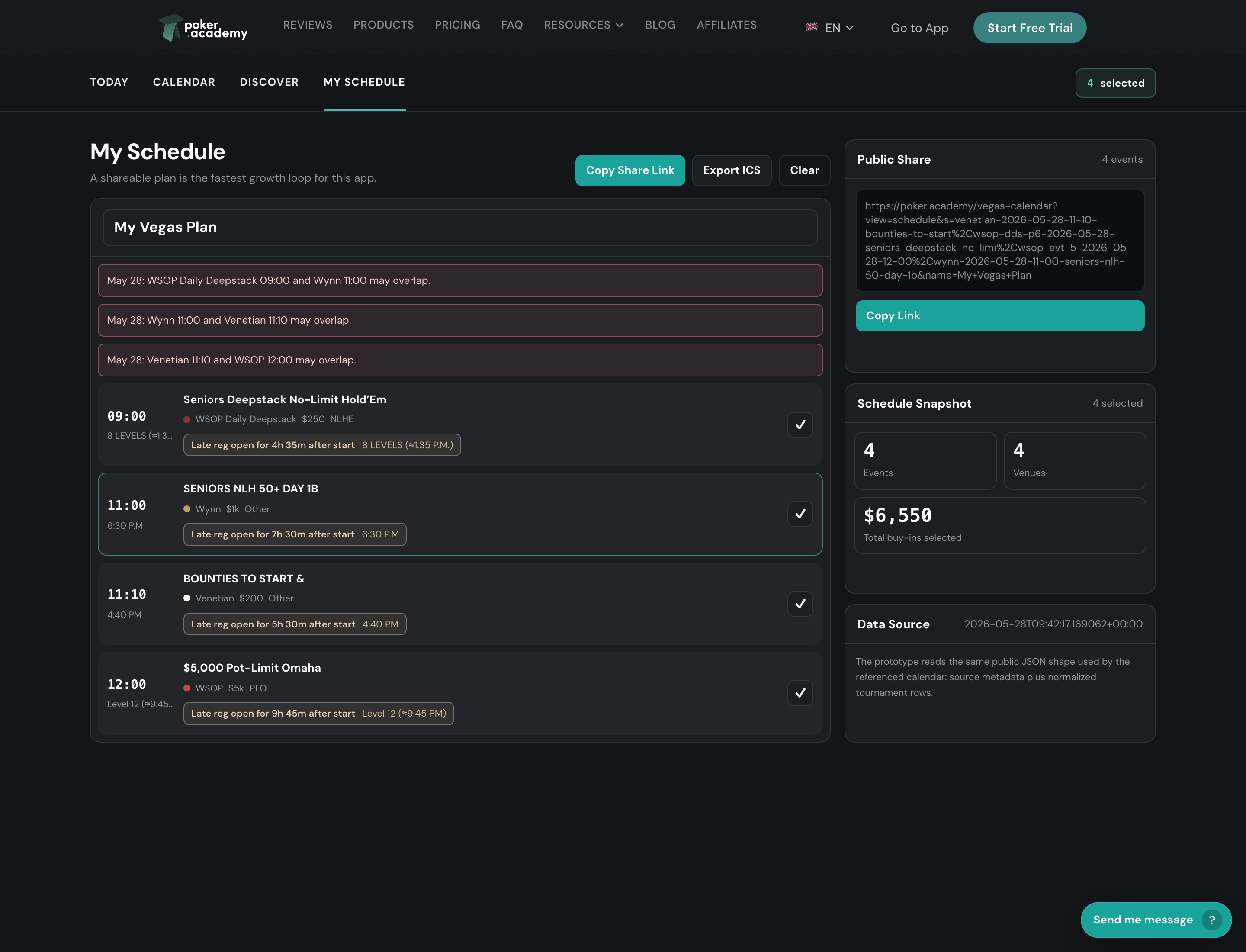
Your schedule does the math for you: total buy-ins, how many venues you are bouncing between, and – the part that saves you – conflict flags. If two events you picked overlap, it tells you before you are stuck min-cashing one while you bag the other.
Sharing your schedule
Your plan lives in your browser (localStorage), so by default it is tied to the one device and browser you built it on. Sharing is how you get it anywhere else – and how you send it to the crew.
Play this spot instead of reading about it
Start Free TrialThe trainer deals the situations this article describes and grades every decision you make. Try it free for 3 days.
- Copy Share Link packs your entire plan – every selected event and the plan name – into a single URL. The plan travels in the link itself, so there is no account and nothing to save server-side.
- Open it on your phone by texting yourself the link. It rebuilds the exact same schedule on any device that opens it – the cleanest way around the one-device limit.
- Send it to your backer or travel group so everyone is looking at the same card. They can open it, tweak their own copy, and share back.
The Public Share panel shows the live link and a one-tap Copy button. Add or remove an event and the link updates – just copy it again to share the new version.
Reading an event card
Click any event to expand it. You get the full picture without leaving the page.
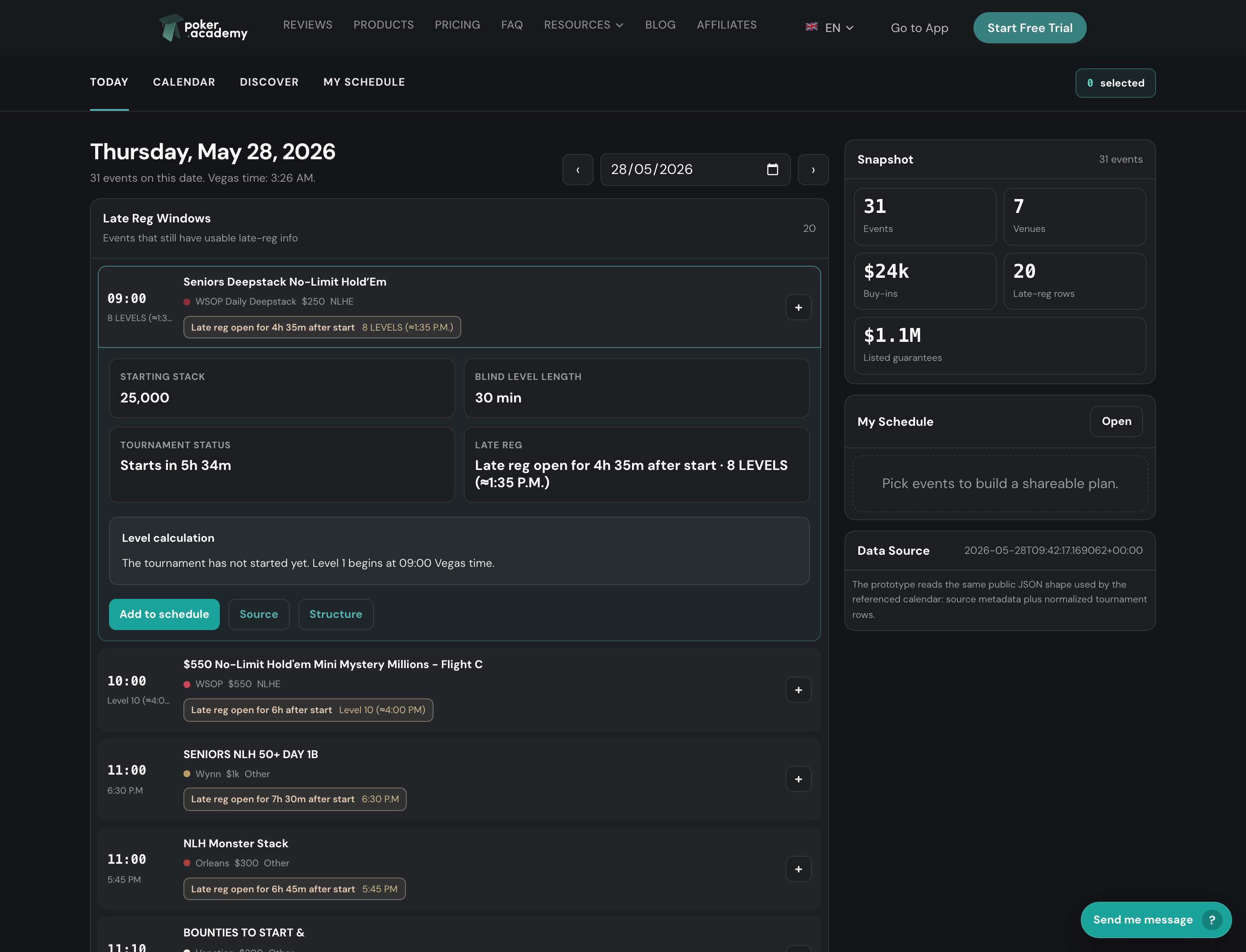
Starting stack, blind level length, tournament status (whether it has started and what level it is on), and the exact late-reg window. The Source link takes you to the room’s official schedule; Structure opens the full blind sheet. No guessing.
What the late-reg badge is telling you
The badge is the single most useful thing on the card. It answers one question: can I still get in?
- Before the event starts – it shows how long the late-reg window stays open after the cards go in the air, e.g. “Late reg open for 6h after start.”
- While it is running – it counts down: “Late reg: 2h 15m left.” It turns urgent in the final hour.
- Once it closes – it tells you how long ago you missed it.
The clock times come straight from each room’s published structure, so when WSOP says Flight A closes at 6 PM and Flights B–E close at 4 PM, that is exactly what you see – per flight, not a guess.
Share it and export it
Built your plan? Two buttons on My Schedule:
- Copy Share Link – sends your whole plan as a URL. Text it to your backer, your travel crew, or yourself on another device.
- Export ICS – drops every selected event into Google Calendar, Apple Calendar, or Outlook as a standard calendar file.
One note: your schedule lives in your browser, so it is tied to that device. Want it on your phone too? Use the share link.
Where the data comes from
This is not a scrape of someone else’s app. The calendar is built from the rooms’ own published schedules and structure sheets, parsed into one normalized feed. Per-flight late-reg times match what the room actually printed. Here are the official sources – check any of them yourself:
- WSOP – 2026 WSOP schedule · bracelet structures (PDF)
- WSOP Daily Deepstacks – deepstacks all-in-one (PDF)
- Wynn – Summer Classic schedule (PDF)
- Venetian – DeepStack Championship schedule (PDF)
- Aria – Poker Classic schedule (PDF)
- MGM Grand – Summer Poker Festival schedule (PDF)
- Orleans – Summer Open flyer & structures (PDF)
- Golden Nugget – Grand Poker Series schedule
- South Point – Summer Events schedule
It refreshes so late-reg, guarantees, and structures stay current through the summer.
Spotted a bug? Send it our way
This is built by players, for players – and Vegas schedules shift all summer. If you catch a wrong structure, a missing event, or a late-reg time that looks off, hit the feedback button in the bottom-right corner of the calendar and shoot us a message. Bugs, missing tournaments, or just an idea to make it better – we read every single one and fix fast. We genuinely appreciate it.
Bottom line
Open Today when you are heads-down in Vegas. Open Calendar to plan the trip. Live in Discover when you are deciding what is worth your buy-in. Build it out in My Schedule and share the link.
It is free, no login, no app to install. Open the Vegas Poker Calendar and build your summer.
Partner: Luxon Pay is now live in the US – and you can win a $10K WSOP Main Event seat
Our partner Luxon Pay just opened in the United States. Bank deposits are live now (card deposits coming soon), and US-based players can finally buy in to WSOP Vegas events through the WSOP Live app and check out with Luxon Pay – with no fees.
Here is the part worth your attention: every WSOP buy-in you check out with Luxon Pay counts as one entry into a draw for a $10,000 WSOP Main Event seat. Play more events, get more entries.
If you are heading to Vegas anyway, it is basically free lottery tickets on buy-ins you were already going to make. Create a Luxon Pay account through our link to get set up – the full WSOP seat-draw rules are on Luxon once you are in.
Bonus from us: if you do not have an active Poker Academy subscription and you are new to Luxon, create your account through our link and we will give you 1 month of Poker Academy Premium free ($119 value). After you register, reply to our welcome email with the address you used to create the Luxon account.
Disclosure: the Luxon registration link above is an affiliate link – if you register through it, we may receive a commission. The Premium bonus applies only to new Luxon Pay accounts created through our link by users without an active Poker Academy subscription. Check Luxon Pay and WSOP terms, eligibility, fees, and limits before using.
Related posts
Poker Academy
Stop guessing preflop.
1,500,000+ GTO preflop solutions. Try them free for 3 days.
Start Free TrialCancel anytime.